Introduction to Galaxy

Bioinformatics for Infectious Disease Ecology Research

What is Galaxy?

Galaxy

Galaxy

Data intensive analysis for everyone

  • Versatile and reproducible workflows
  • Web platform
  • Open source under Academic Free License
  • Developed at Penn State, Johns Hopkins, OHSU and Cleveland Clinic with substantial outside contributions

Galaxy resources

Why use Galaxy?

  • It’s easy!
    • No installation, all you need is a browser.
    • No complex commands, just point and click!
  • Makes your research reproducible
    • Galaxy keeps track of all analysis details
  • Cross-domain: bioinformatics, chemistry, ecology, climate science, digital humanities …

Core values

  • Accessibility
    • Users without programming experience can easily upload/retrieve data, run complex tools and workflows, and visualize data
  • Reproducibility
    • Galaxy captures information so that any user can understand and repeat a complete computational analysis
  • Transparency
    • Users can share or publish their analyses (histories, workflows, visualizations)
    • Pages: online Methods for your paper

Galaxy growth

  • More than 10,500 ready to use tools for users
  • More than 13,000 citations
  • More than 170 public Galaxy resources
    • 130+ public servers, many more non-public
    • Both general-purpose and domain-specific
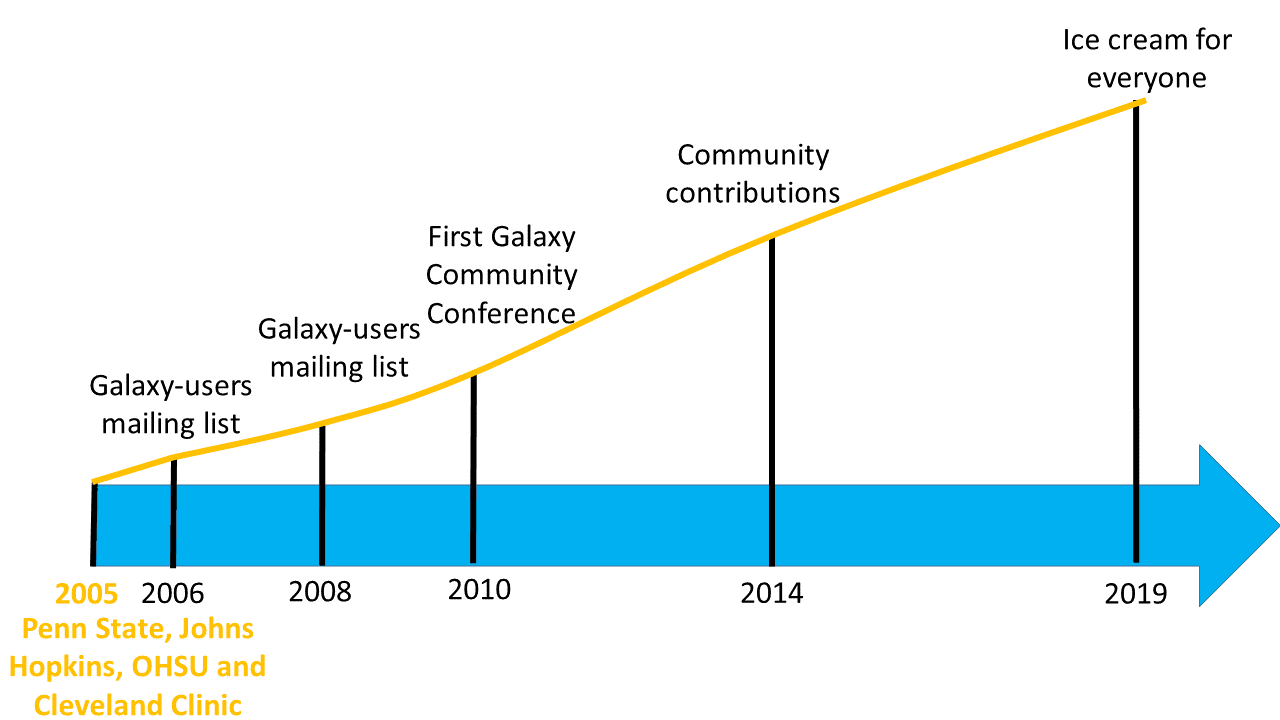
Galaxy timeline

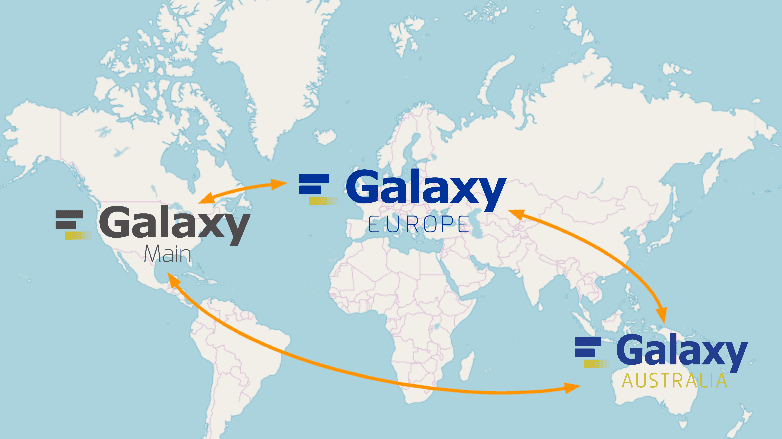
Find a Galaxy server

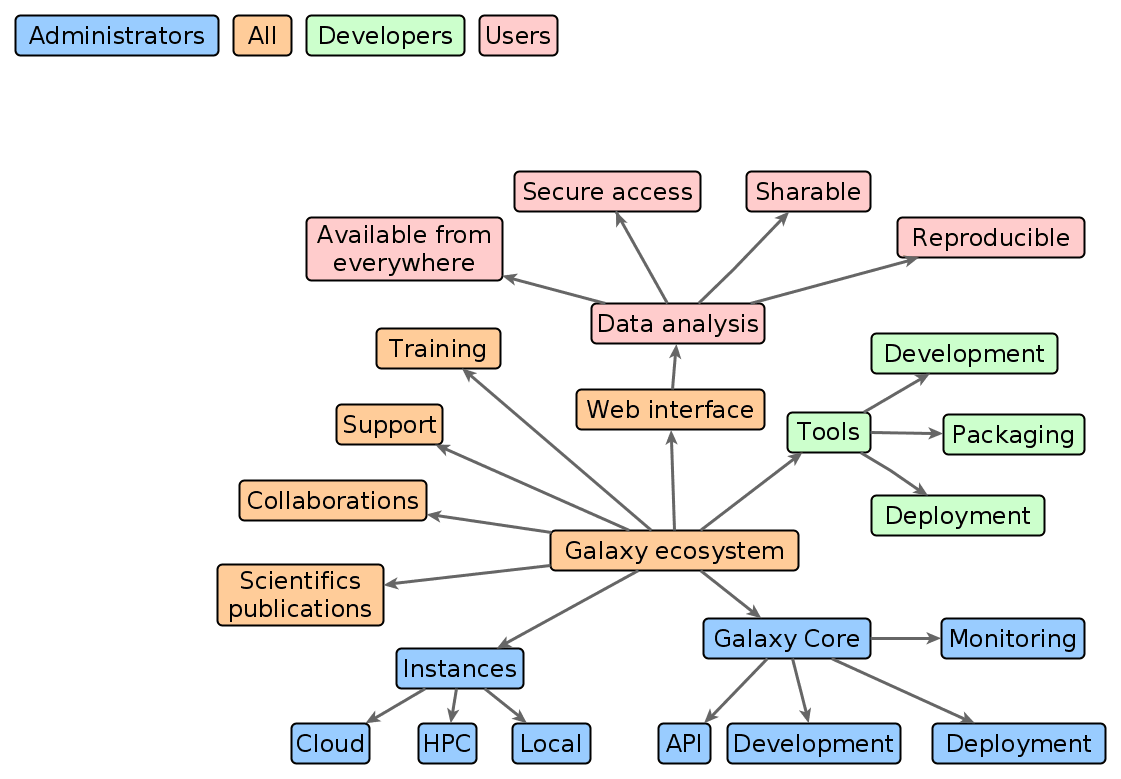
Galaxy ecosystem

Galaxy ecosystem

User Interface

Main Galaxy interface
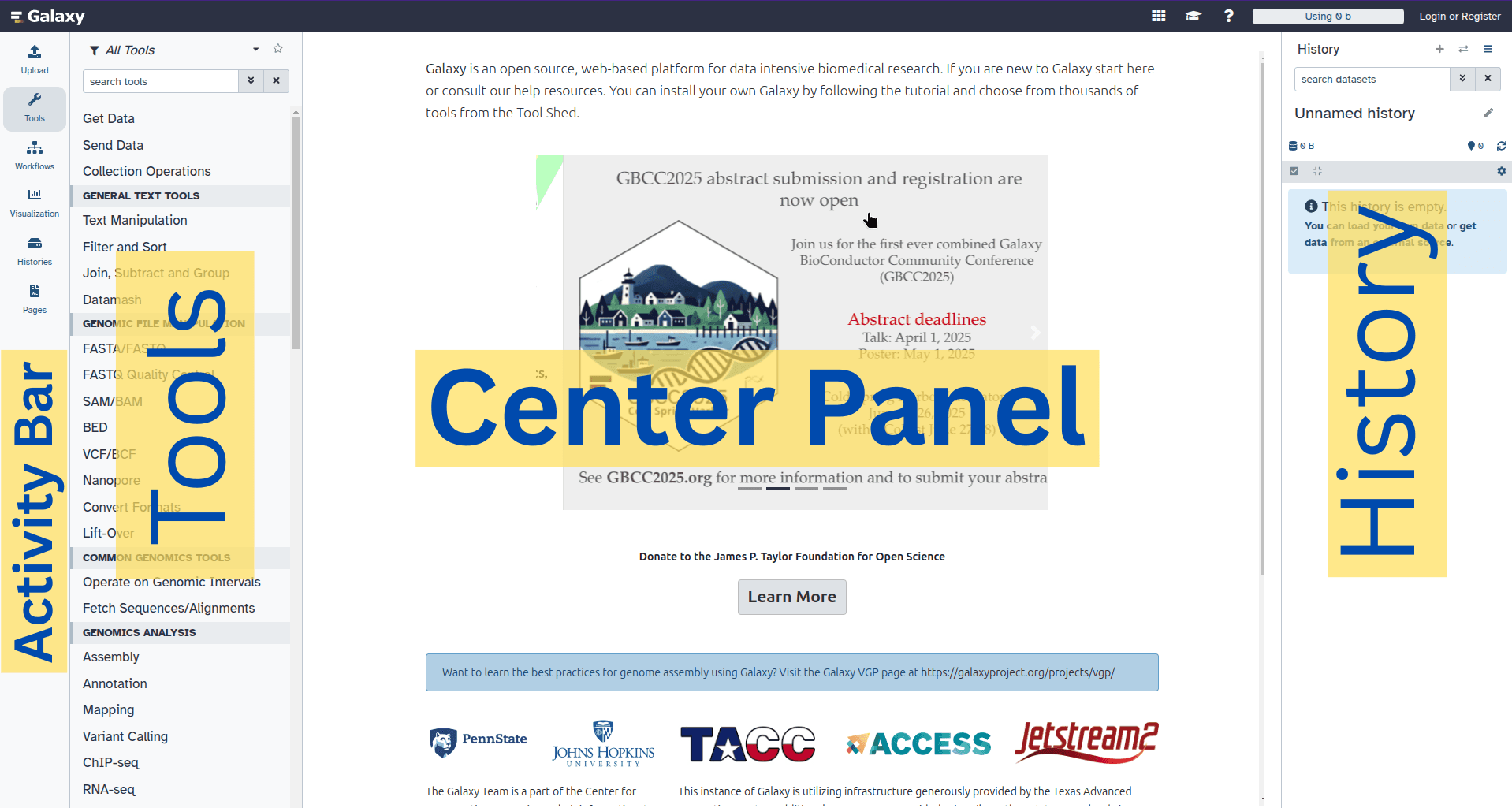
Galaxy user interface

Home page divided into 4 panels

Activity Bar

Activity Bar

Link Usage
Upload various ways to get data into Galaxy
Tools opens tool bar
Workflows access existing workflows or create new one using the editable diagrammatic pipeline
Interactive Tools launch and manage interactive tools
Visualize create new visualisations
Histories view and manage histories
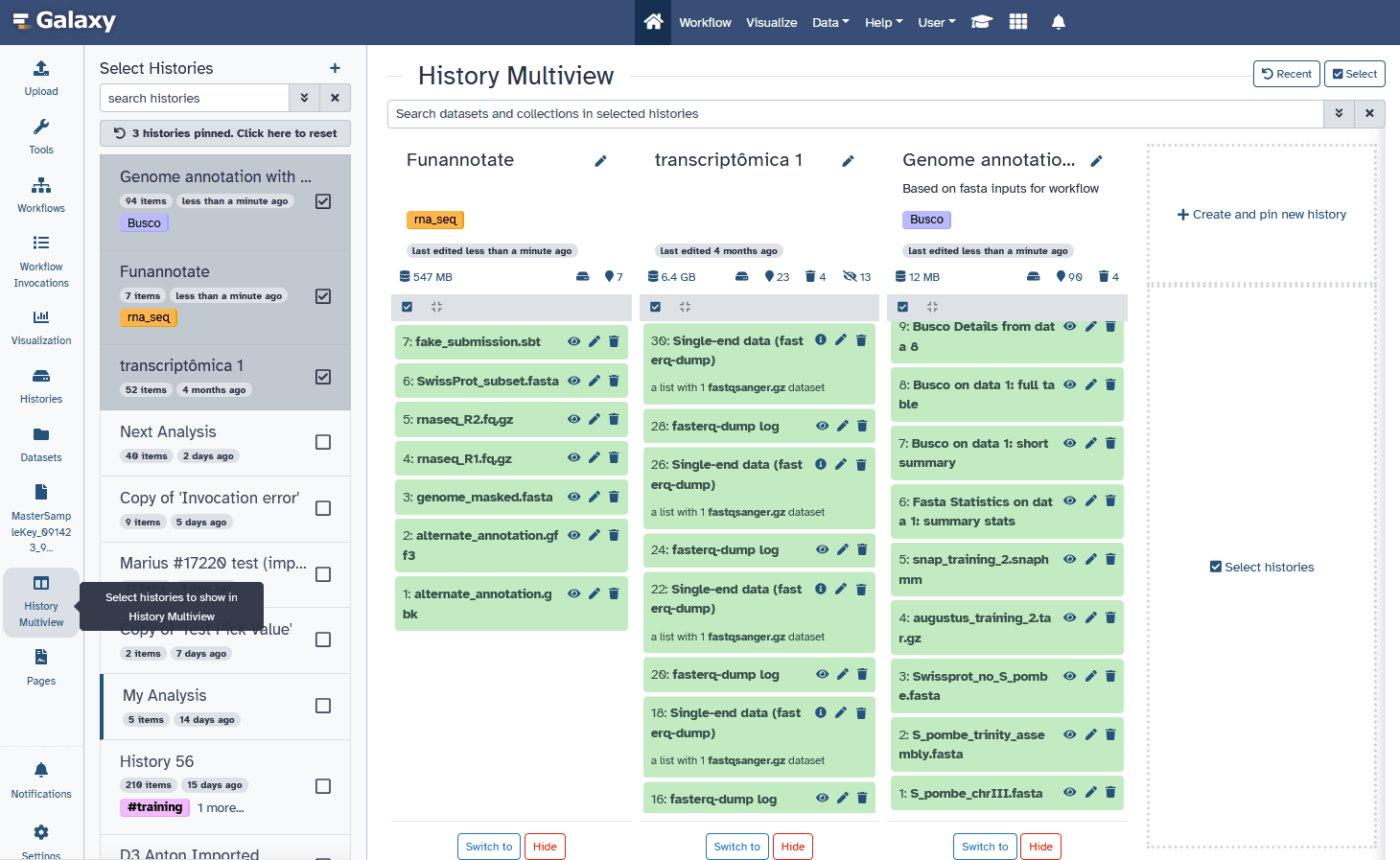
History Multiview search and copy datasets among multiple histories at a time
Datasets view all datasets
Pages links to Galaxy pages
Libraries access your private and public data libraries
Notifications notifications on server updates and user data sharing

Tools

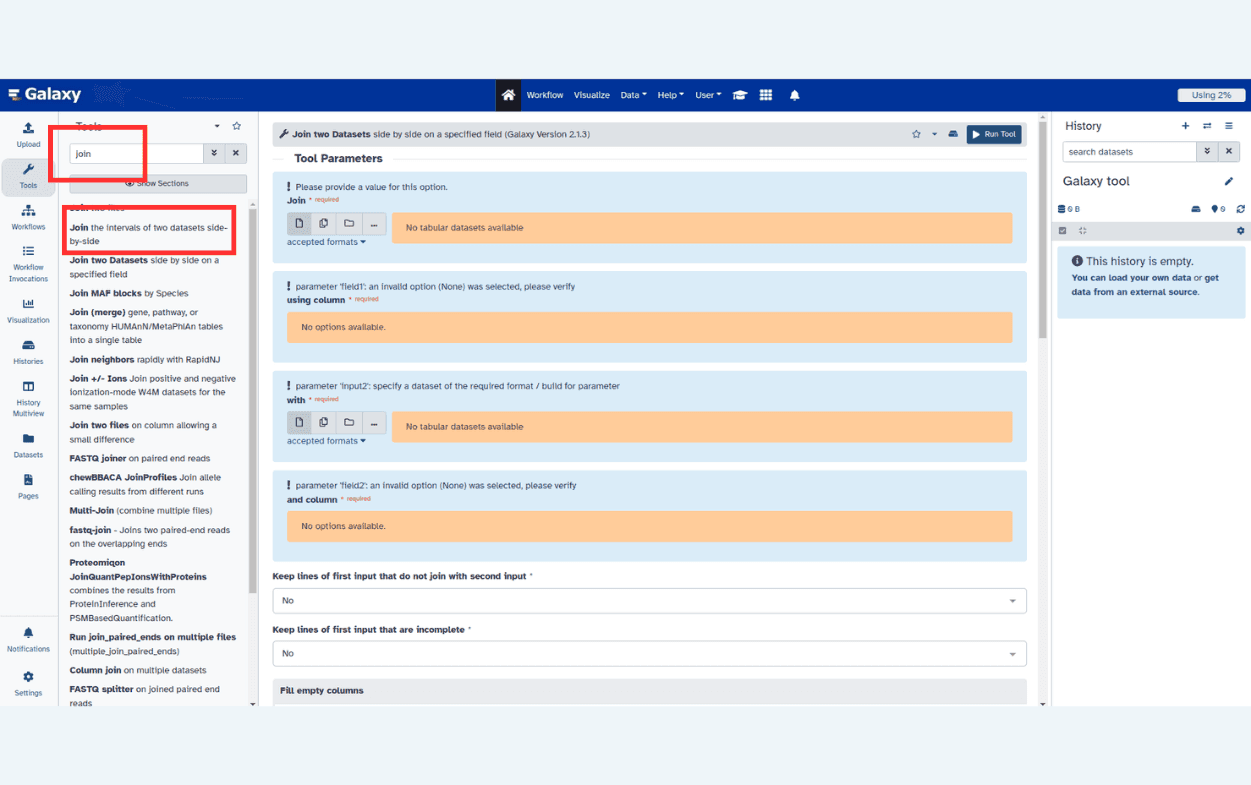
Tool interface
  • The tool search helps in finding a tool in a crowded toolbox

Tool interface

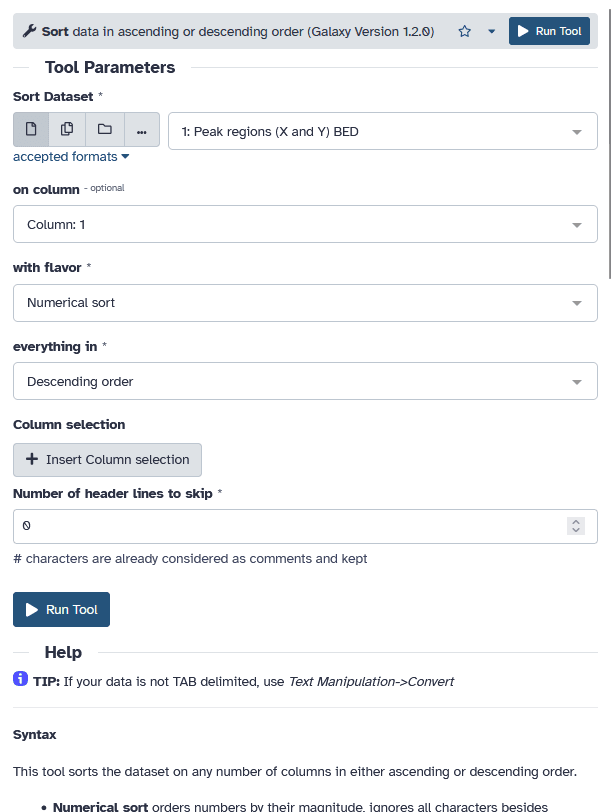
Screenshot of the tool interface for the Sort tool showing some inputs and a Run Tool button.

  • A tool form contains:
    • input datasets and parameters
    • help, citations, metadata
    • a Run Tool button to start a job, which will add some output datasets to the history
  • New tool versions can be installed without removing old ones to ensure reproducibility

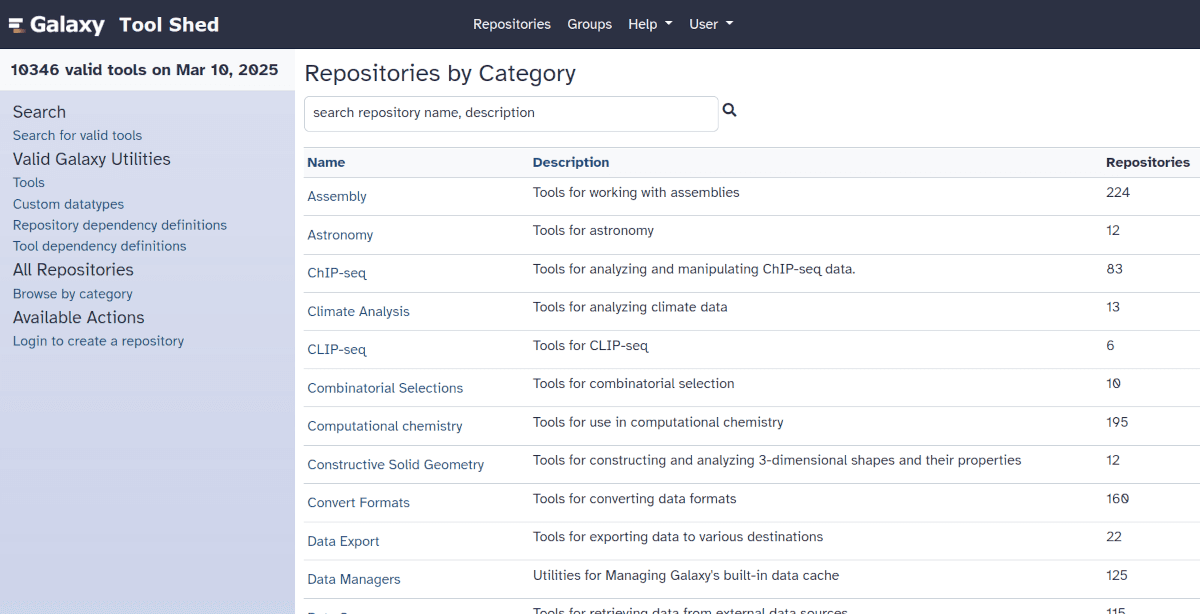
Tool Shed

Screenshot of the toolshed homepage
  • Free “app” store: Galaxy Tool Shed
    • Thousands of tools already available
    • Most software can be integrated
      • If a tool is not available, ask the Galaxy community for help!
    • Only a Galaxy admin can install tools

History

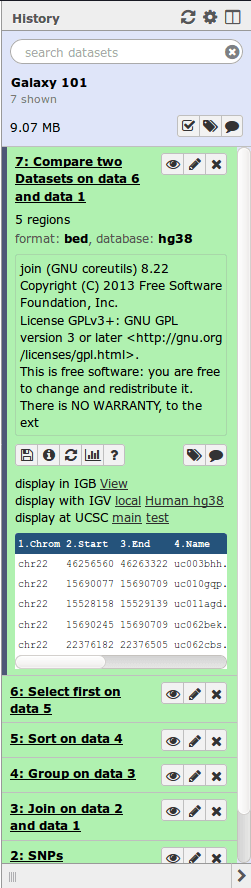
  • Location of all analyses
    • collects all datasets produced by tools
    • collects all operations performed on the data
  • For each dataset (the heart of Galaxy’s reproducibility), the history tracks
    • name, format, size, creation time, datatype-specific metadata
    • tool id, version, inputs, parameters
    • standard output (stdout) and error (stderr)
    • state (waiting, running, success, failed)
    • hidden, deleted, purged

History

Multiple histories

  • You can have as many histories as you want
    • each history should correspond to a different analysis
    • and should have a meaningful name
Screenshot of galaxy showing multiple histories next to each other in the multi-history view

History options menu

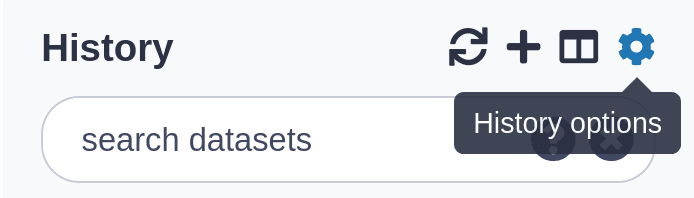
History behavior is controlled by the History options (gear icon)
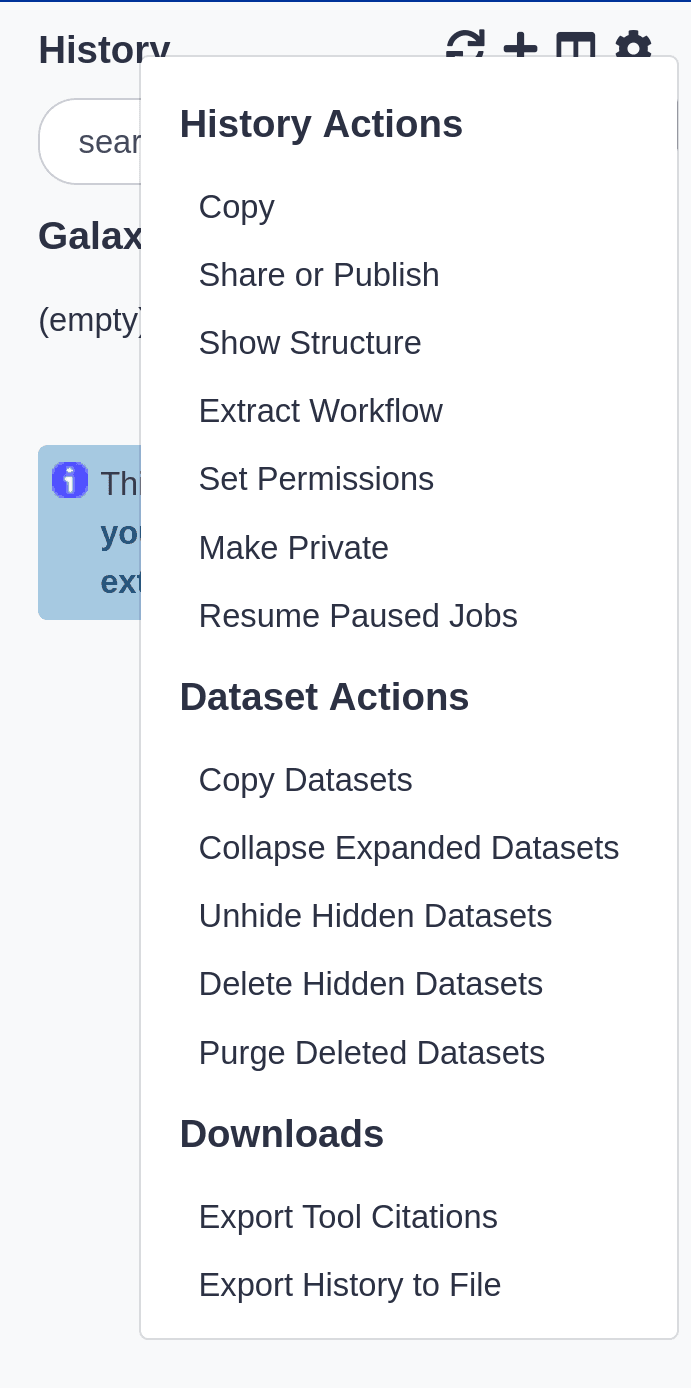
History menu

History options gear button

  • Create new history (+ icon) will not make your current history disappear
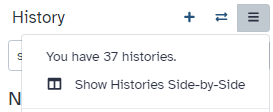
  • To see all of your histories, use the history switcher

History Switcher

  • Copy Datasets from one history to another and save disk space for your quota

Loading data

Importing data

  • Copy/paste some text
  • Upload files from your local computer
  • Upload data from an internet URL
  • Upload data from online databases: UCSC, BioMart, ENCODE, modENCODE, Flymine etc.
  • Import from Shared Data (libraries, histories, pages)
  • Upload data from FTP

See Getting data into Galaxy

Datatypes

  • Tools only accept input datasets with the appropriate datatypes
  • When uploading a dataset, its datatype can be either:
    • automatically detected
    • assigned by the user
  • Datasets produced by a tool have their datatype assigned by the tool
  • To change the datatype of a dataset, either:
    • pencil icon Edit attributes and Datatypes (if original wrong), or
    • pencil icon Edit attributes and Convert

Reference datasets

Example: reference Genome

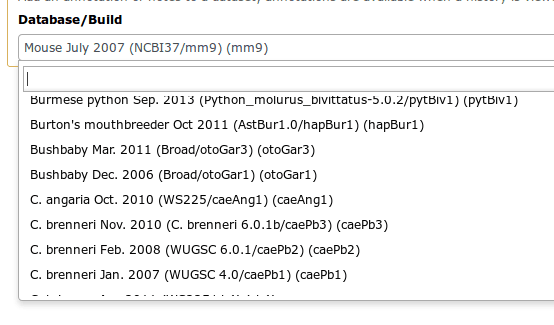
  • Genome build specifies which genome assembly a dataset is associated with
    • e.g. mm10, hg38…
  • Can be assigned by a tool or by the user
  • Users can create custom genome builds
  • New builds can be added by the admin

Genome Builds

Workflows

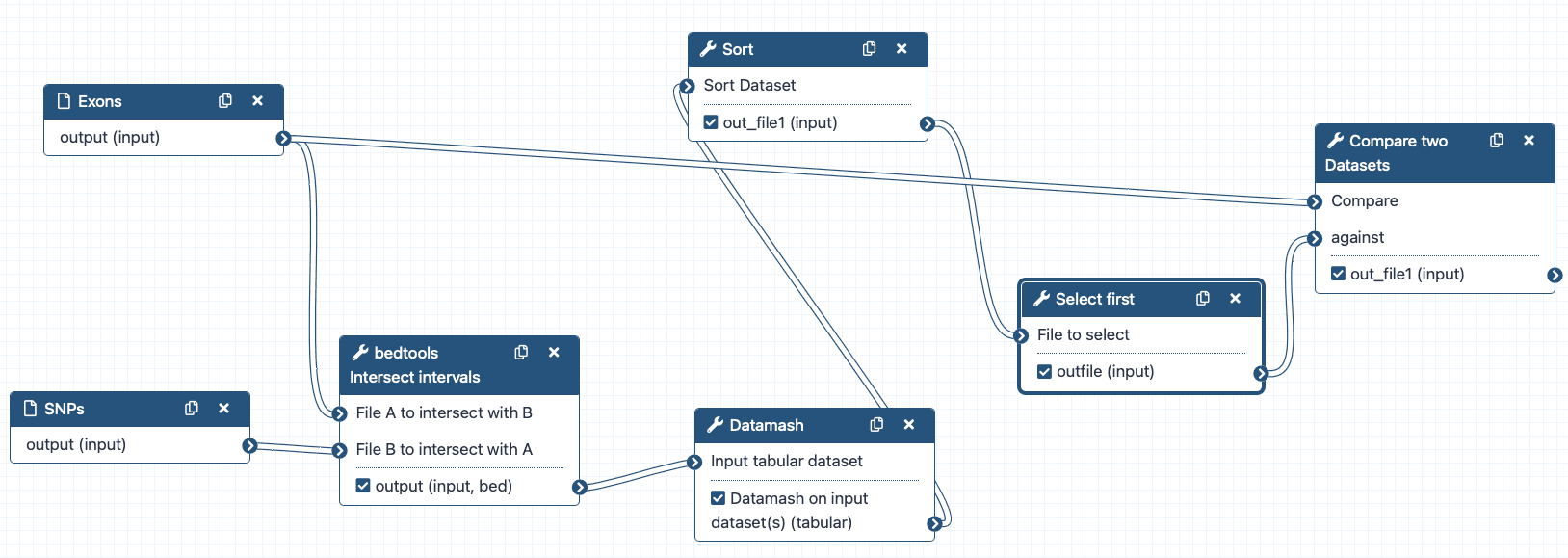
Workflow Editor

  • Run end-to-end analyses with one click
Workflow interface
  • Extracted from a history
  • Built manually by adding and configuring tools using the canvas
  • Imported using an existing shared workflow

Why would you want to create workflows?

  • Re-run the same analysis on different input data sets
  • Change parameters before re-running a similar analysis
  • Make use of the workflow job scheduling
    • jobs are submitted as soon as their inputs are ready
  • Create sub-workflows: a workflow inside another workflow
  • Share workflows for publication and with the community

Visualizations

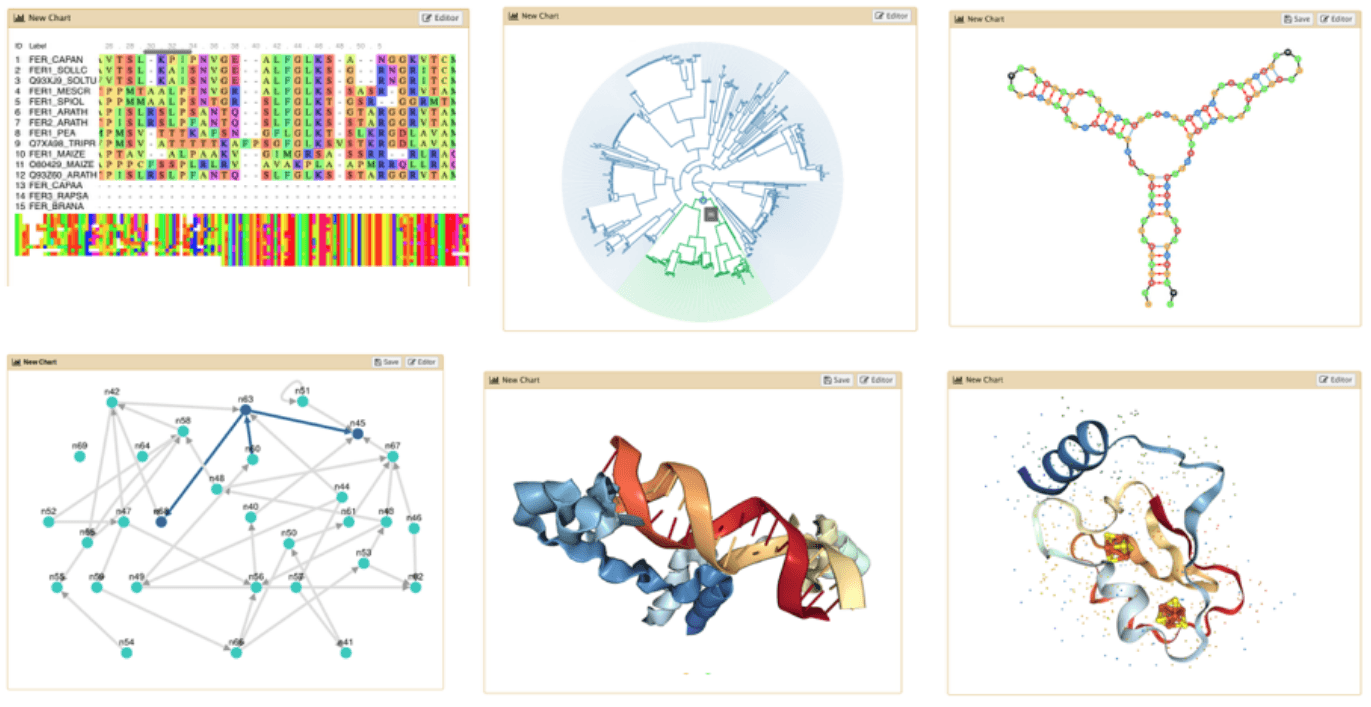
Examples of 6 different visualisations in galaxy features an MSA, a couple graphs, RNA structure, and 3d visualisations of proteins
  • Datatypes know what tools can be used to visualize datasets:
    • Sequencing data has a button for visualizing in IGV
    • Tabular data will prompt you to build charts
    • Protein data can be seen in a 3D viewer
  • Interactive environments: Jupyter, RStudio, etc

Sharing data

  • Share everything you do in Galaxy - histories, workflows, and visualizations
    • Directly using a Galaxy account’s email addresses on the same instance
    • Using a web link, with anyone who knows the link
    • Using a web link and publishing it to make it accessible to everyone from the Shared Data menu

See Sharing your History in Galaxy

Community

Credits

These slides are adapted from the Galaxy Training Network material Introduction to Galaxy and A Short Introduction to Galaxy.

Original contributors (GitHub): bagnacan, bebatut, shiltemann, pajanne, nsoranzo, hexylena, chrisbarnettster, michelemaroni, annefou, nagoue, olanag1, tnabtaf, ahmedhamidawan

Licensed under CC-BY 4.0. Changes were made to the original.