A short introduction to Galaxy
Questions
- How to get started in Galaxy ?
Objectives
- Learn how to upload a file
- Learn how to use a tool
- Learn how to view results
- Learn how to view histories
- Learn how to extract and run a workflow
- Learn how to share a history
Overview
- This is a short introduction to the Galaxy user interface - the web page that you interact with.
- We will cover key tasks in Galaxy: uploading files, using tools, viewing histories, and running workflows.
Create an account on a Galaxy instance/server
If you already have an account, skip to the next section!
In Galaxy, server and instance are often used interchangeably. These terms basically mean that different regions have different Galaxy servers/instances, with slightly different tool installations and appearances. If you don’t have a specific server/instance in mind, we recommend registering at one of the main public servers/instances, detailed below.
Galaxy Introduction Slide
put the pdf file on Galaxy Introduction. Explain what it the concept, that it is present that they are servers all around the world. Explain that bioinformatic is a world made out of tools for specific uses, and Galaxy allows you to use all these tools.
Open the slides in full screen — adapted from the Galaxy Training Network (CC-BY 4.0).
What does Galaxy look like?
- Open your favorite browser (Chrome, Safari, Edge or Firefox, not Internet Explorer!)
- Browse to your Galaxy instance (usegalaxy.org.au)
- Log in or register
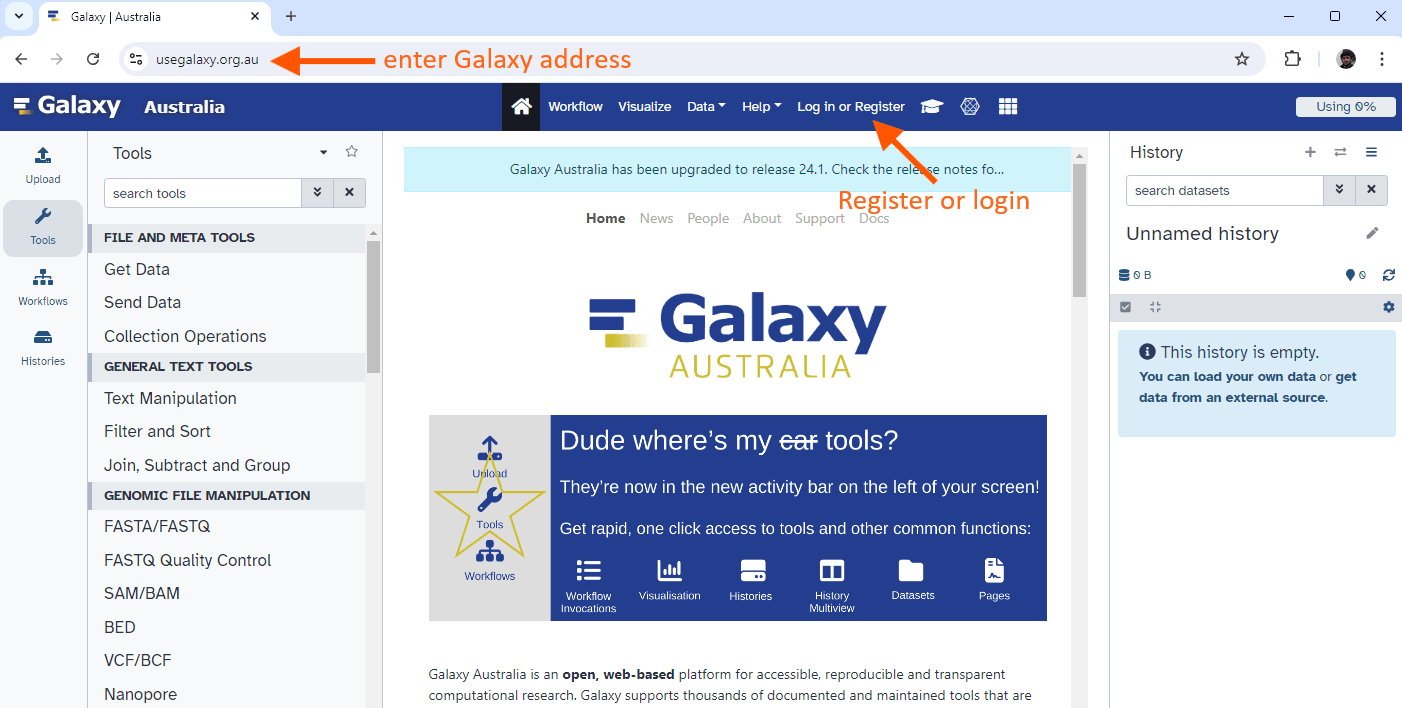
This is an image of Galaxy Australia, located at usegalaxy.org.au
You can also find more possible Galaxy servers depending on your region.
The Galaxy homepage is divided into four sections (panels):
- The Activity Bar on the left: This is where you will navigate to the resources in Galaxy (Tools, Workflows, Histories etc.)
- Currently active “Activity Panel” on the left: By default, the Tools activity will be active and its panel will be expanded
- Viewing panel in the middle: The main area for context for your analysis
- History of analysis and files on the right: Shows your “current” history; i.e.: Where any new files for your analysis will be stored
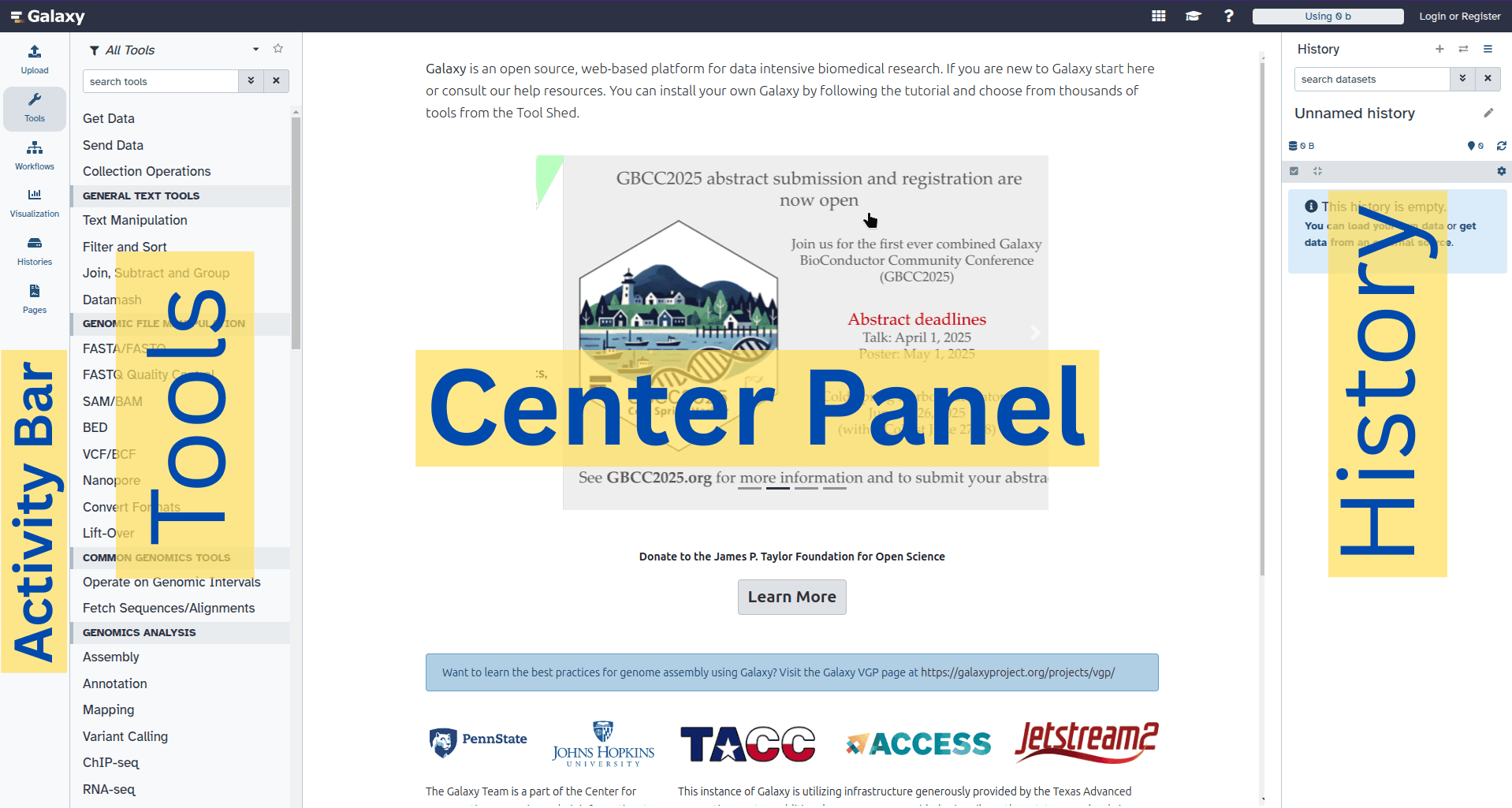
The first time you use Galaxy, there will be no files in your history panel.
Key Galaxy actions
Name your current history
Your “History” is in the panel at the right. It is a record of the actions you have taken.
Go to the History panel (on the right)
Click ✏️ (Edit) next to the history name (which by default is “Unnamed history”)
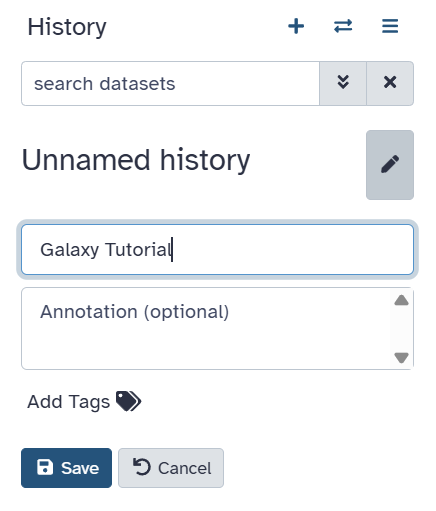
Screenshot of the galaxy interface with the history name being edited, it currently reads “Unnamed history”, the default value. An input box is below it. Type in a new name, for example, “Galaxy Tutorial”
Click Save
If renaming does not work, it is possible you aren’t logged in, so try logging in to Galaxy first. Anonymous users are only permitted to have one history, and they cannot rename it.
Upload the files from SRA
In the Data availability part of the E.Coli Paper, it is written:
“Data availability: All sequencing data and assembled genomes are deposited at the European Nucleotide Archive under study PRJEB77560. A table with all accession numbers is in Supplementary Data (S13).”
What is European Nucleotide Archive ?
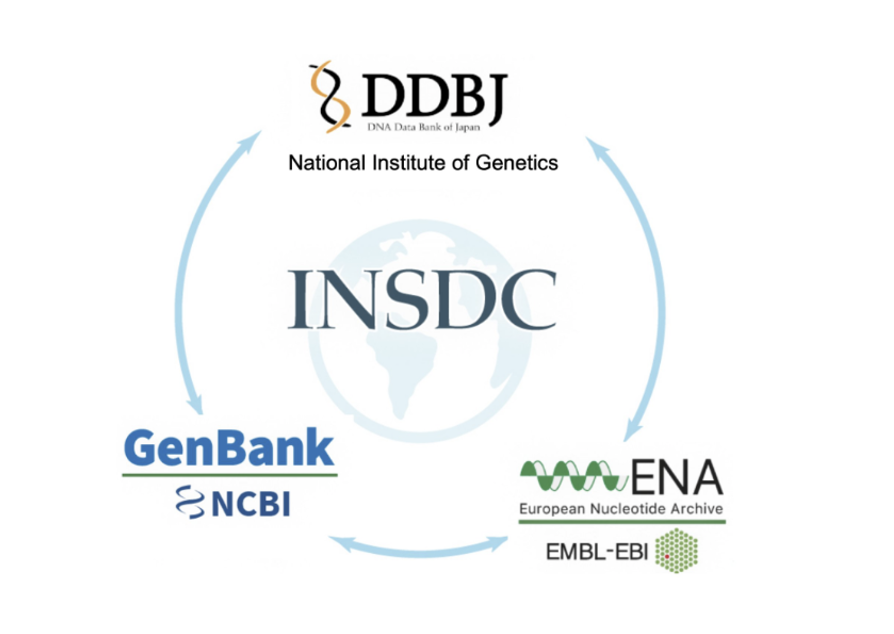 . The International Nucleotide Sequence Database Collaboration (INSDC) archives nucleotide sequence data, from raw to assembled and annotated sequences, from around the world. There are three primary members DDBJ (DNA Databank Japan), NLM-NCBI (National Library Medicine – National Center for Biotechnology Information) and ENA (European Nucleotide Archive), which are mirrored, thus sequences shared with one are shared with all.Each of the repositories, DDBJ, ENA and NLM-NCBI all hold the same data, however each one has a different interface and mechanisms for uploading and downloading.
| NCBI | ENA | DDBJ | |
|---|---|---|---|
| Full name | National Center for Biotechnology Information | European Nucleotide Archive | DNA Data Bank of Japan |
| Host institution | NLM / NIH | EMBL-EBI | National Institute of Genetics (NIG) |
| Region | USA | Europe (UK) | Japan |
| Assembled / annotated sequences | GenBank | ENA sequence records | DDBJ sequence records |
| Raw sequencing reads | SRA (Sequence Read Archive) | ENA read archive | DRA (DDBJ Sequence Read Archive) |
| Raw-read accession prefixes | SRR, SRX, SRS, SRP | ERR, ERX, ERS, ERP | DRR, DRX, DRS, DRP |
| BioProject prefix | PRJNA | PRJEB | PRJDB |
| BioSample prefix | SAMN | SAMEA | SAMD |
| Main submission portal | NCBI Submission Portal | Webin | D-way (DDBJ submission system) |
| Website | ncbi.nlm.nih.gov | ebi.ac.uk/ena | ddbj.nig.ac.jp |
This data is used in many tools: 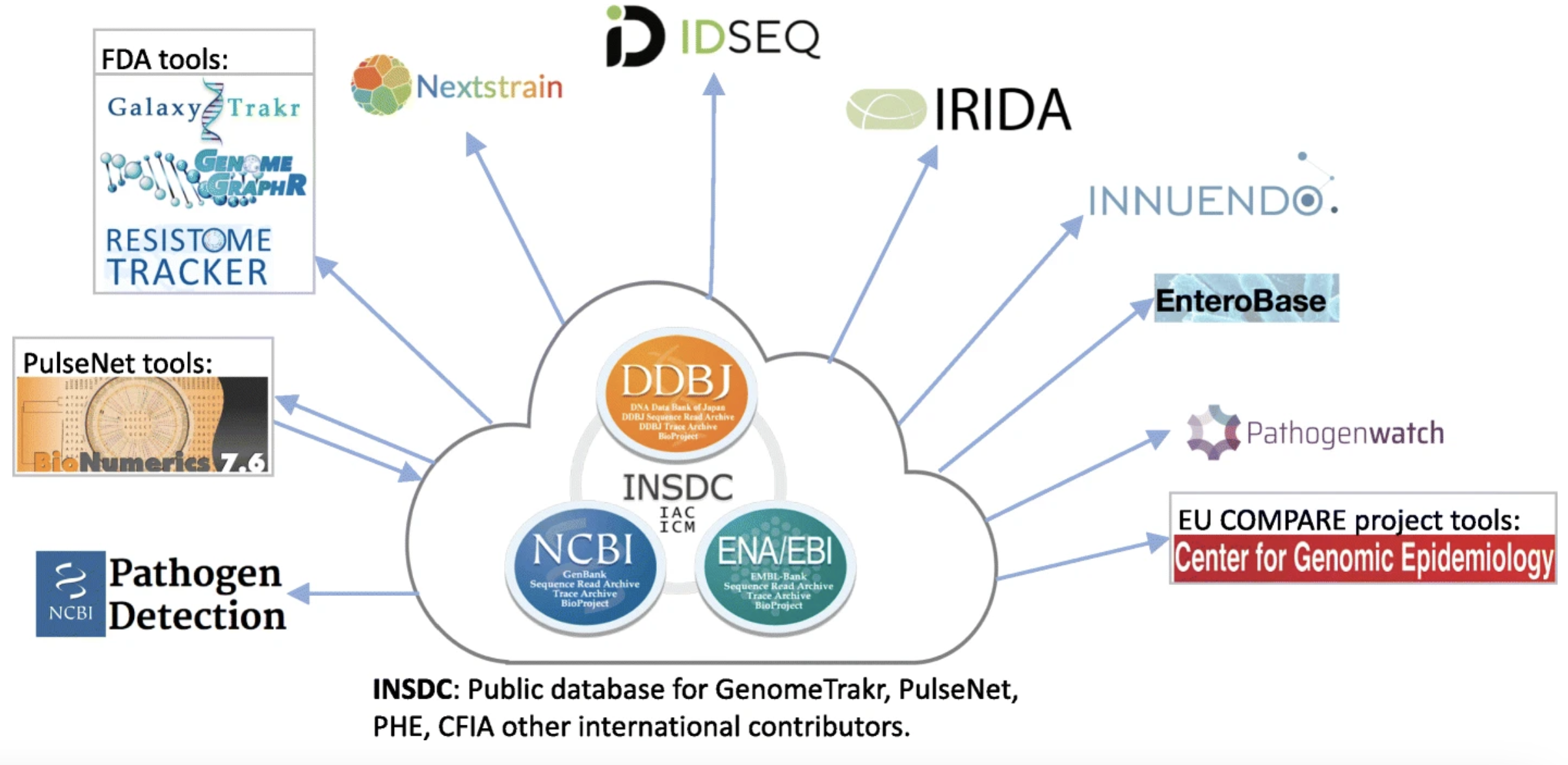 .
.
The product of INSDC
Every object in the INSDC system, whether a project, a sample, an experiment, a run, or an assembled sequence, gets its own unique accession number, and that number is the key to retrieving it :
| Level | What it describes | NCBI | ENA | DDBJ |
|---|---|---|---|---|
| Project / Study | The overall research effort | BioProject (PRJNA) |
Study (PRJEB) |
BioProject (PRJDB) |
| Sample | The biological material sequenced | BioSample (SAMN) |
Sample (SAMEA) |
BioSample (SAMD) |
| Experiment | Library prep and sequencing method | SRX | ERX | DRX |
| Run | A set of reads from one sequencing run | SRR | ERR | DRR |
| Assembled sequences | Genomes, genes, transcripts | GenBank | ENA records | DDBJ records |
The hierarchy is like this : Project / Study → Sample → Experiment → Run ↘ Assembled sequences (GenBank / ENA / DDBJ)
A project is retrieved through its BioProject accession (e.g., PRJNA…, PRJEB…, PRJDB…), a sample through its BioSample accession (e.g., SAMN…, SAMEA…, SAMD…), raw reads through run accessions (SRR/ERR/DRR), and assembled sequences through GenBank/ENA/DDBJ accessions (e.g., MN908947). Because the three databases synchronize daily, any of these accessions can be searched in NCBI, ENA, or DDBJ, regardless of where the data was first submitted. The accessions are also cross-linked: a BioProject page lists its associated BioSamples, runs, and sequences, and each sequence or run record points back to its BioProject and BioSample. This means you can start from any one accession and navigate to the rest of the related data, which makes records stable, citable in publications, and reproducible.
The ENA project of our study.
Indeed, if you dug into the European Nucleotide Archive (ENA) website. You can find the project PRJEB77560.
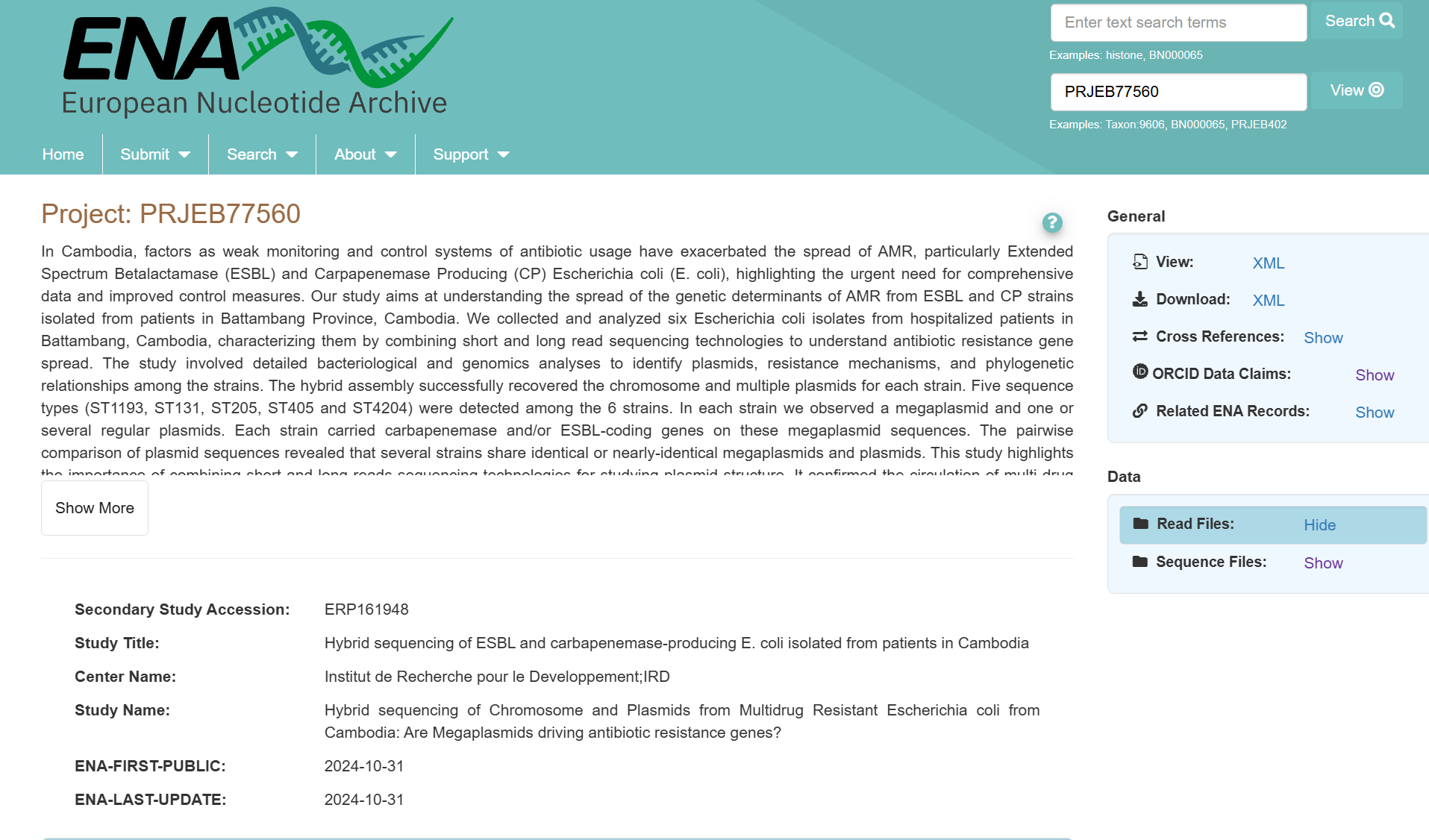
In total, You have 12 run accessions from 6 Sample accessions: for each of the 6 samples you have 2 runs, one for the long reads, and another one for the short reads !
Throughout the tutorial, we will work on 1 sample: SAMEA115834835 (strain 368), and its 2 runs:
| Run accession | Technology | Reads |
|---|---|---|
| ERR13363306 | Illumina NovaSeq 6000 | Short reads, paired-end (2 × 150 bp) |
| ERR13363634 | Oxford Nanopore MinION | Long reads, single-end |
We will download both runs now, and start by looking at the short reads.
Galaxy Tool
There are tools that allows to upload directly sequences using the accession number ! To download several runs at once, we first give Galaxy the list of accessions in a text file.
Click on Upload (in the activity bar on the left)
Click on Paste/Fetch data
Copy and paste the 2 accession numbers, one per line:
ERR13363306
ERR13363634
Name the dataset SRA accessions
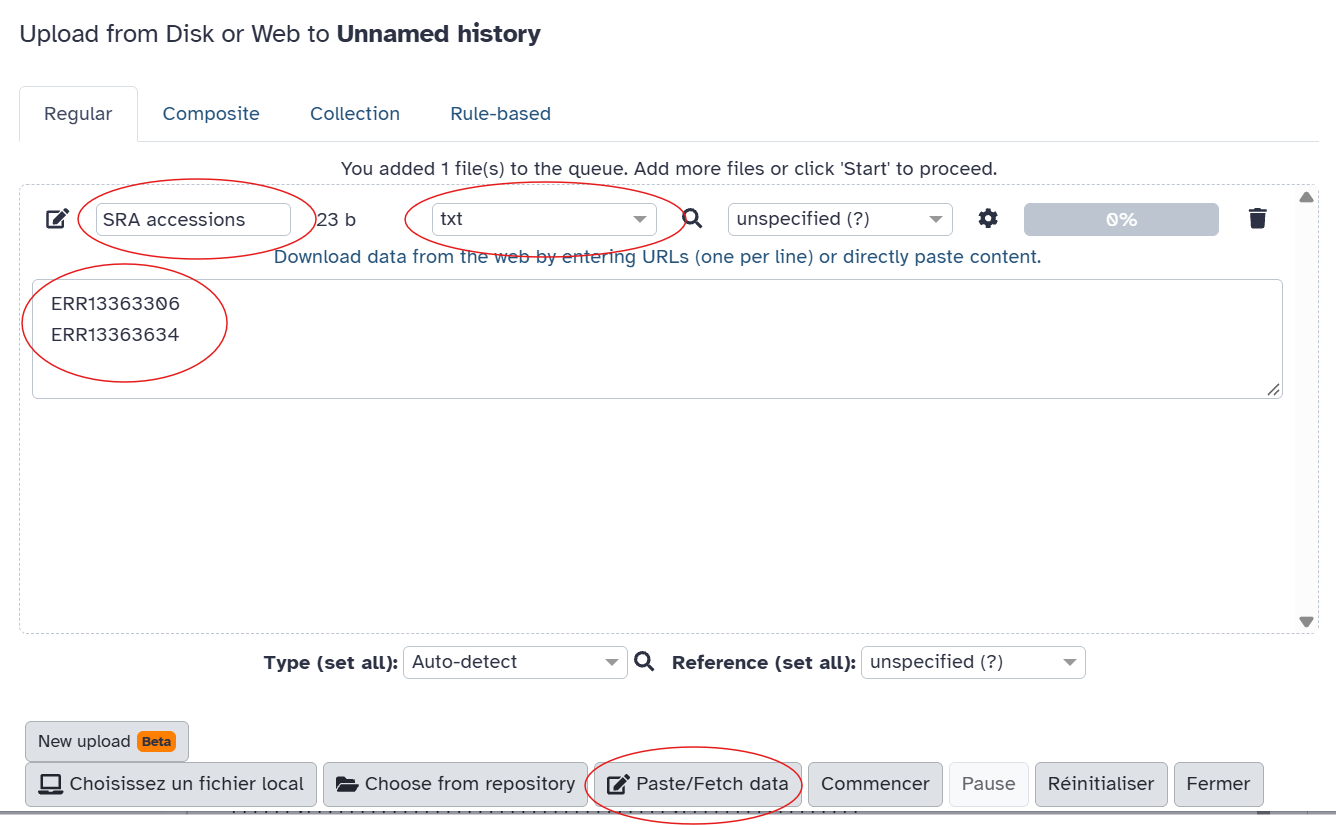
Click Start, then Close
The dataset should appear in your history.
Type fastq sra in the tools panel search box (top)
Click the tool (Faster Download and Extract Reads in FASTQ format from NCBI SRA)
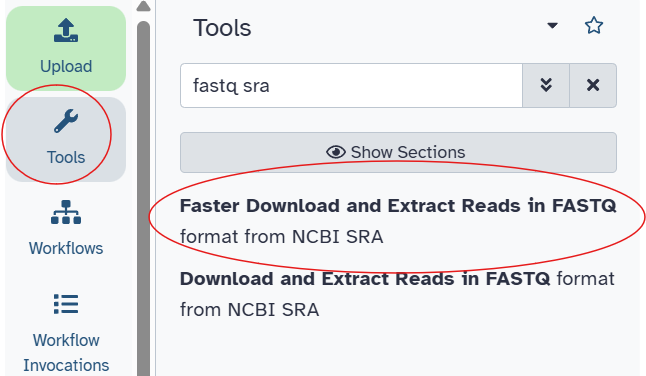
fastq SRA click on the tool The tool will be displayed in the central Galaxy panel.
Select the following parameters:
select input type: List of SRA accession, one per line
sra accession list: SRA accessions
In Advanced Options, define format specification for sequence, type:
@$ac.$sn/$ri length=$rlNo change in the other parameters
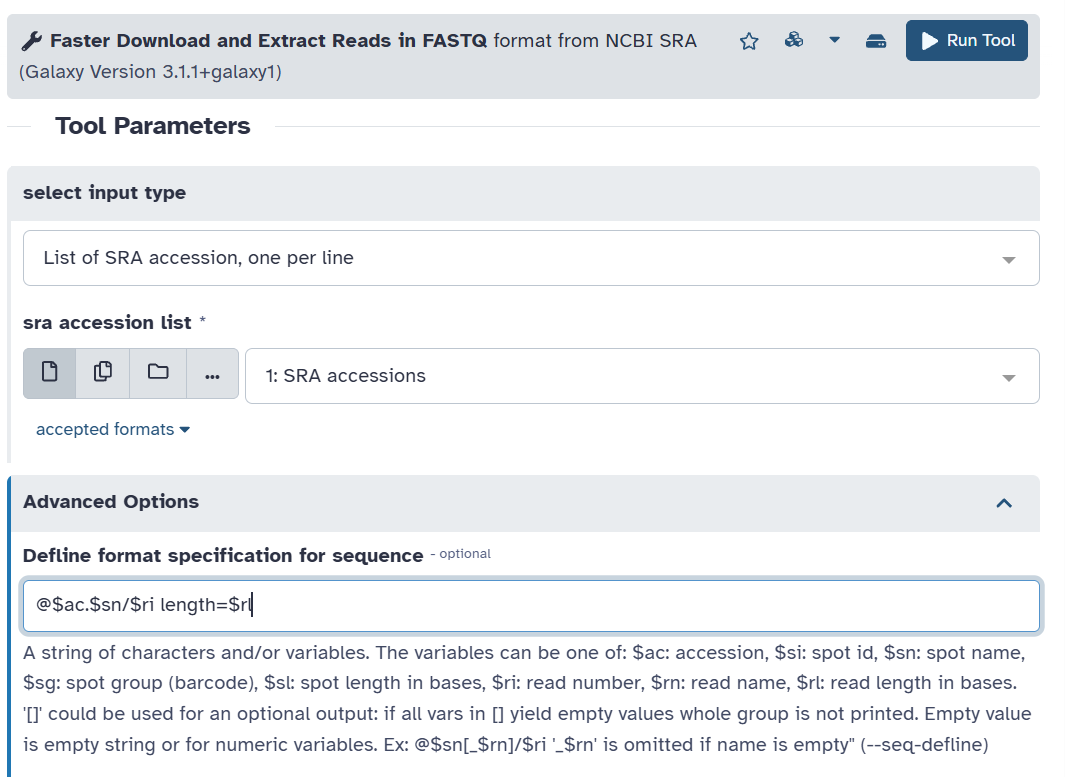
Click Run Tool
The parameter @$ac.$sn/$ri length=$rl will produce headers like:
@ERR13363306.1/1 length=150
@ERR13363306.2/1 length=150
Where:
$ac= accession (ERR13363306)$sn= spot number (read number)$ri= read index (1 for forward, 2 for reverse; always 1 for the single-end long reads)$rl= read length
This tool will run and 4 new output datasets will appear at the top of your history panel :
- Pair-end data (fasterq-dump)
- Single-end data (fasterq-dump)
- Other data (fasterq-dump)
- fasterq-dump log
OUTPUT
Your uploaded file is now in your current history. When the file has uploaded to Galaxy, it will turn green.
After this you will see your first history item (called a “dataset”) in Galaxy’s right panel. It will go through the gray (preparing/queued) and yellow (running) states to become green (success).
Rename the outputs
The reads were sorted in the output collections according to their type:
- Pair-end data (fasterq-dump) contains the short reads of ERR13363306 (a forward and a reverse file)
- Single-end data (fasterq-dump) contains the long reads of ERR13363634 (one file)
- Other data (fasterq-dump) should be empty. You can delete it by clicking on the 🗑️ (bin) icon.
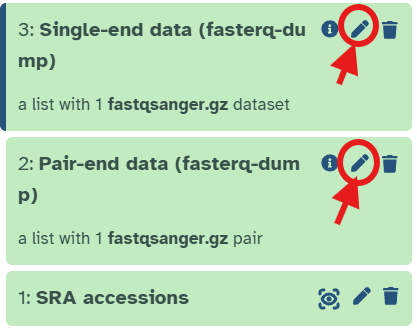 1. Next to Pair-end data (fasterq-dump), click the ✏️ (pencil) icon and rename it to Short Reads. Click Save. 2. Next to Single-end data (fasterq-dump), click the ✏️ (pencil) icon and rename it to Long Reads. Click Save.
LOG FILE
First, we wil look at the fasterq-dump log file.
- Click the 👁️ (eye) icon next to the file fasterq-dump log, to look at the file content.
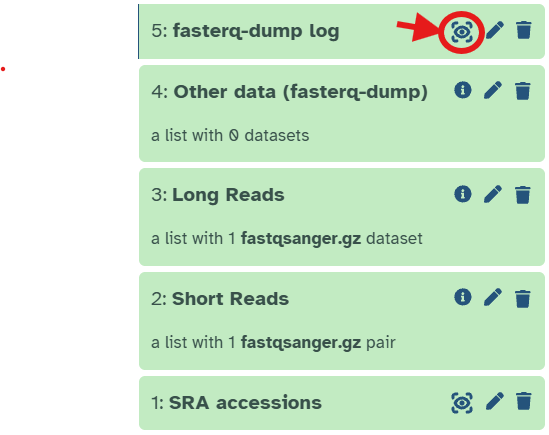 The contents of the file will be displayed in the central Galaxy panel.
The log contains one block of statistics for each of the 2 accessions.
- How many spots have been read for each run ?
- How many reads have been read for each run ?
- How can you explain the difference between the number of spots and reads ?
| Run | spots read | reads read |
|---|---|---|
| ERR13363306 (short reads) | 1,769,462 | 3,538,924 |
| ERR13363634 (long reads) | 133,532 | 133,532 |
A spot is one sequenced DNA fragment. The short reads are paired: each fragment is read from both ends, so this run has two reads per spot, hence : N reads = 2 × N spots. The long reads are single-end: each fragment gives one read, so N reads = N spots.
Reads retrieved from NCBI
Let’s first look at the content of the short reads.
- Click on the Short Reads collection, inside you have a pair (ERR13363306) with 2 datasets, click on it.
- Click the 👁️ (eye) icon next forward, to look at the file content.
The contents of the file will be displayed in the central Galaxy panel. If the dataset is large, you will see a warning message which explains that only the first megabyte is shown.
This file contains DNA sequencing reads from a bacteria, in FASTQ format:
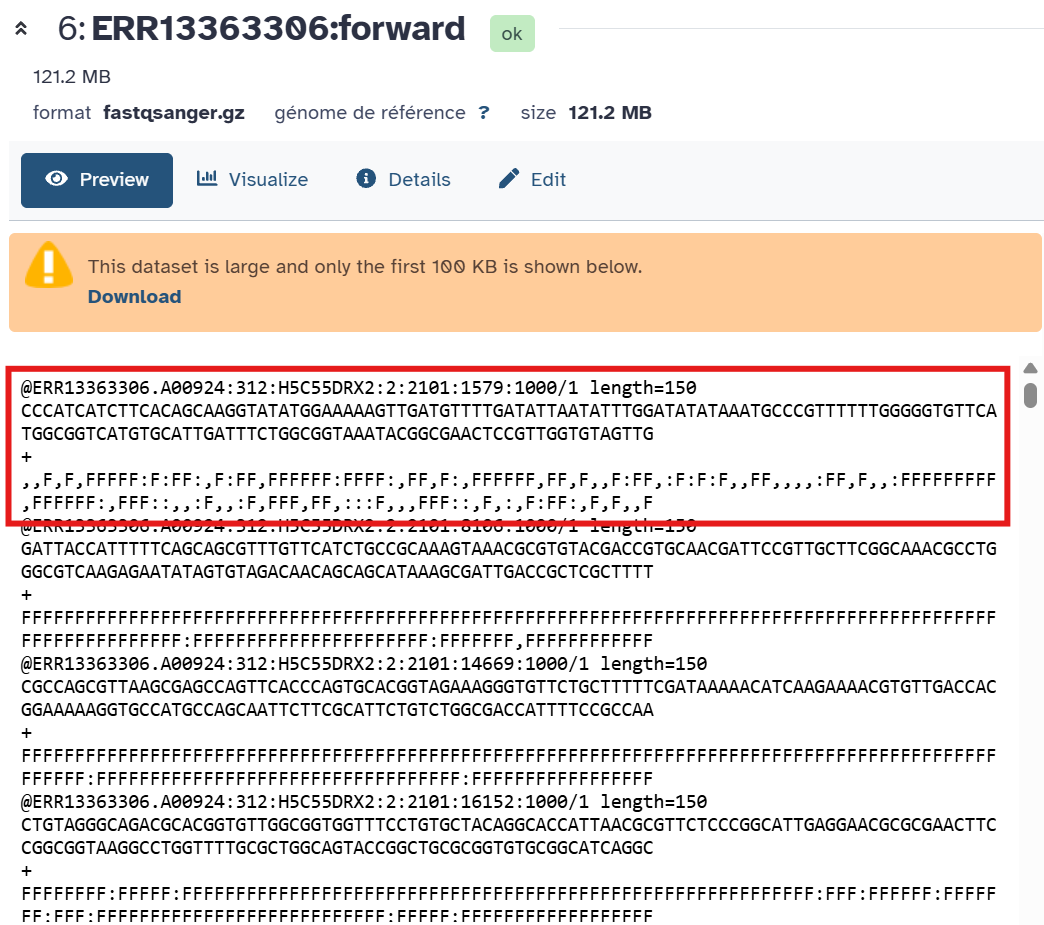
@mutant-no_snps.gff-24960/), the sequence (AATG…), the plus character (+), and then the quality scores for the sequence (5??A…).- What is the name of the first read ? What is the length of the first read ?
- Look at this ASCII characters encoding table :
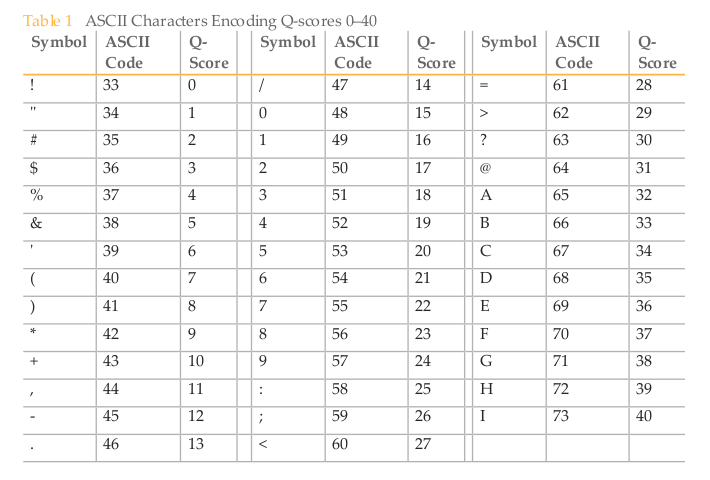 What is the Q score for the symbol “F” ? What is the error probability linked with this symbol ? Reminder : The quality score (Phred score, Q) is a logarithmic measure of how likely a base call is to be wrong. It converts to an error probability with P = 10^(−Q/10), and the reverse is Q = −10 · log10(P). So Q10 means a 1 in 10 chance of error (90% accuracy), Q20 means 1 in 100 (99%), Q30 means 1 in 1,000 (99.9%), and Q40 means 1 in 10,000 (99.99%).
- The name of the first read is @ERR13363306.A00924:312:H5C55DRX2:2:2101:1579:1000/1. The length is this read is 150.
- “F” is ASCII 70. With the Phred+33 encoding, Q = 70 − 33 = 37.
Error probability: P = 10^(−37/10) = 10^(−3.7) ≈ 2 × 10⁻⁴ (about 1 error in 5,000 bases, or ~99.98% accuracy).
- Click on the Long Reads collection, inside you have ERR13363634
- Click the 👁️ (eye) icon, to look at the file content.
What is the name of the first read ? What is the length of the first read ? What is the difference with the forward short read ?
The name of the first read is @ERR13363634.037cd229-9c79-45ad-b03b-fa987cfc58c4/1 . The length in this read is 520.
Use a tool: FastQE
The quality symbol in FASTQ Format can be hard to interpret, that’s why we are going to use our first tool to have a better understanding of the data: FastQE. FastQE turns ASCII characters into emojis that are easy to interpret.
We will run it on the long reads, the Long Reads collection (run ERR13363634).
By default, FastQE only handles reads up to 500 bp, which is enough for Illumina reads, but not for Nanopore reads, which are several kb long. We need to increase the Maximum read length. For the tool to run quick, and as an example we will just increase it to 1000, but be aware that Nanopore reads can be longer than 10 kb.
Type FastQE in the tools panel search box (top)
Click the tool (FASTQE visualize fastqfiles with emoji’s)
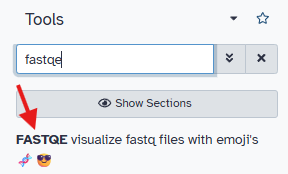
fastqe click on the tool The tool will be displayed in the central Galaxy panel.
Select the following parameters:
- FastQ data: Select the format Dataset Collection, and select Long Reads
- Maximum read length:
1000 - No change in the other parameters
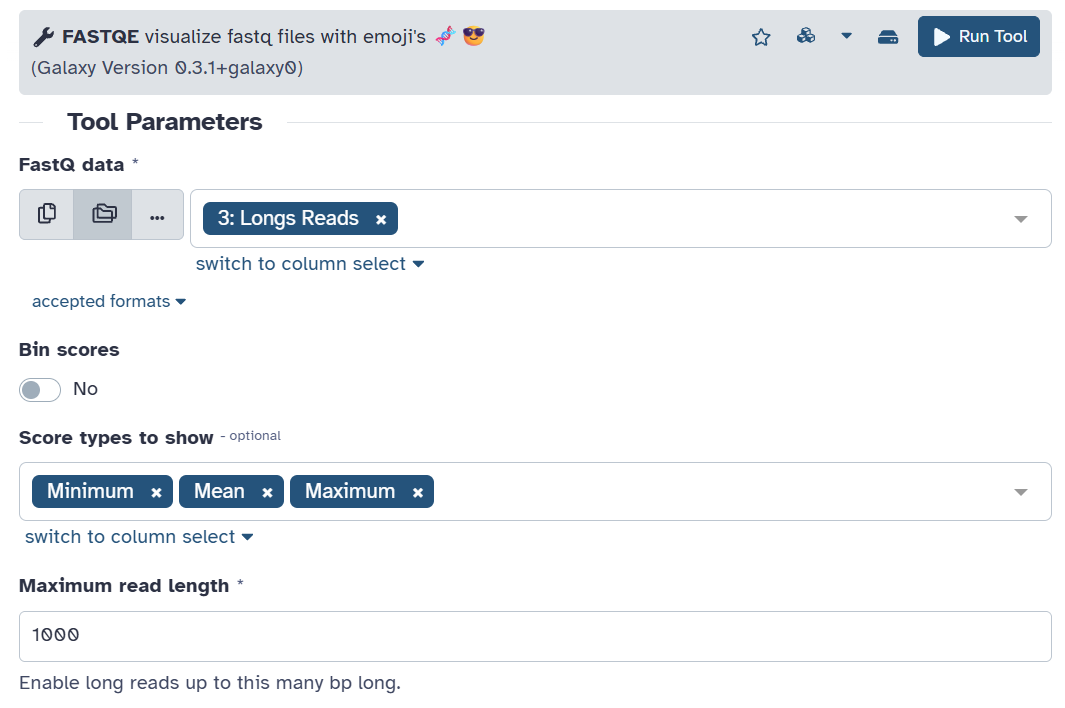
Click Run Tool
FastQE shows one emoji per position of the reads: with a maximum read length of 5000, we get the quality of the first 5000 positions. This is just an overview of the quality of the reads.
Let’s look at the quality of the reads in this file. This tool will run and one new output dataset will appear at the top of your history panel.
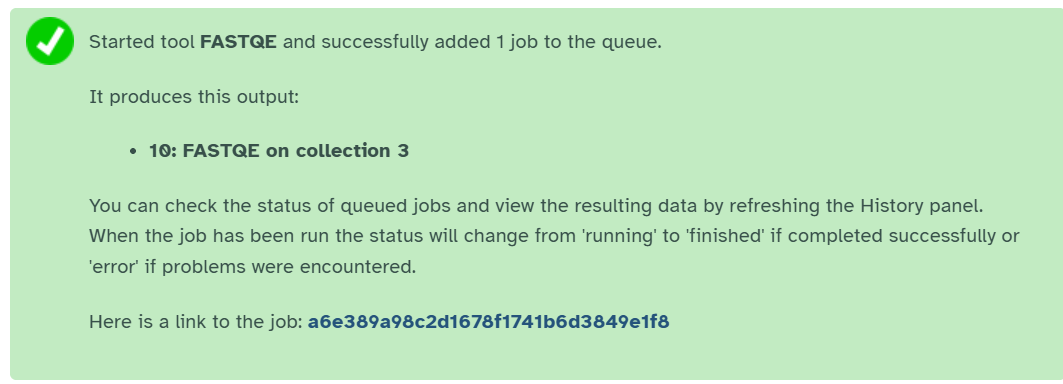
View results
We will now look at the output dataset called FastQE on data 1. Rename it FastQE Long Reads.
- Note that Galaxy has given this dataset a name according to both the tool name (“FastQE”) and the input (“data 1”) that it used.
- The name “data 1” means the dataset number 1 in Galaxy’s current history (our FASTQ file).
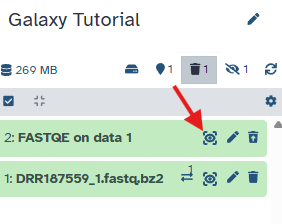
- Once it’s green, click the 👁️ (eye) icon next to the “Webpage” output dataset.
The information is displayed in the central panel
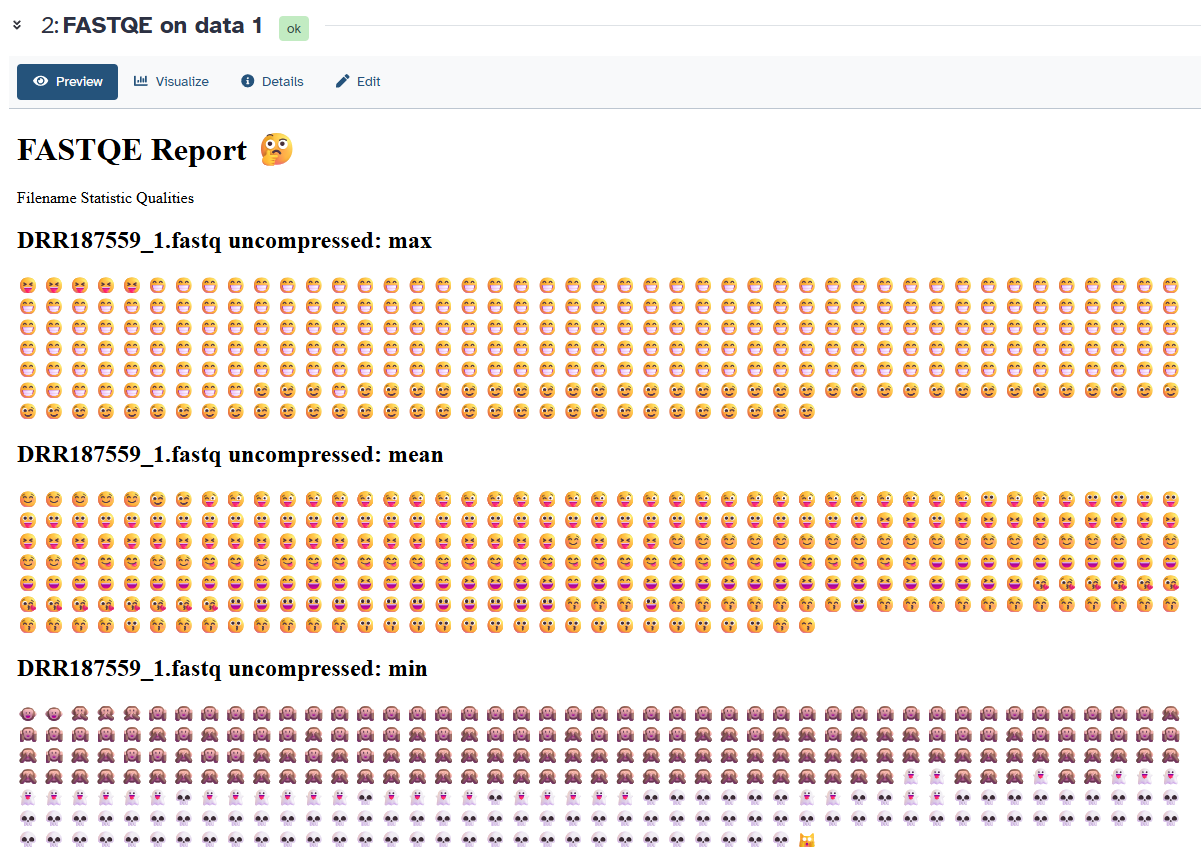
- What is the best and worst quality for the mean ?
- What is the best and worst quality for the min ?
- What is the best and worst quality for the max ?
Look on the fastqe website or at the scale displayed below :

- For the max: the worst is … and the best is …
- For the min: the worst is … and the best is …
- For the mean: the worst is … and the best is …
Note: our long reads were sequenced on an Oxford Nanopore MinION. Their quality is lower than for Illumina reads: the median quality of the reads is around Q14 (~4% of errors), while most Illumina bases are above Q30 (0.1% of errors). Unlike our Illumina reads (NovaSeq 6000), whose quality scores are binned into only 4 values, Nanopore quality scores can take any value, so you see many different emojis.
Share your history
Imagine you had a problem in your analysis and want to ask for help.
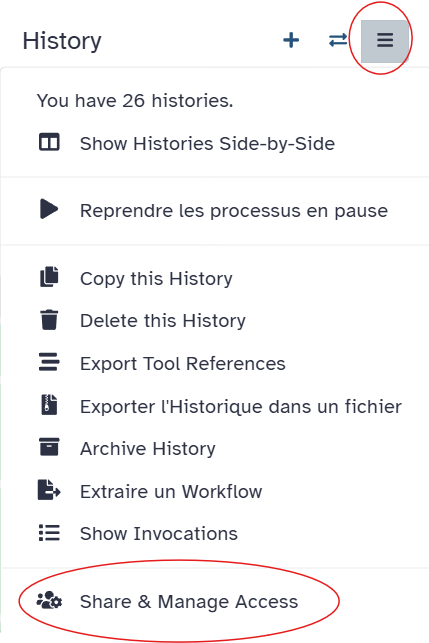
In the main panel, click Make History accessible. It creates an url, that you can share !
Create a new history
Now, let’s create a new history for our next analysis, which will be the quality control and trimming of the reads.
- Create a new history
- Rename it “Quality Control and Trimming”
This new history has no datasets yet.
Copy the previous datasets in the new history
We want to do the quality control on the reads of our sample. Because we already downloaded them, we are going to copy the 2 collections Short Read and Long Read from our first history “Galaxy Tutorial” to the history “Quality Control and Trimming”.
Open History Multiview in the activity bar

history_multiview_tutorial.png Or click Show Histories side-by-side
Copy the collections Short Read and Long Read into your new history by dragging them from “Galaxy Tutorial” to “Quality Control and Trimming”
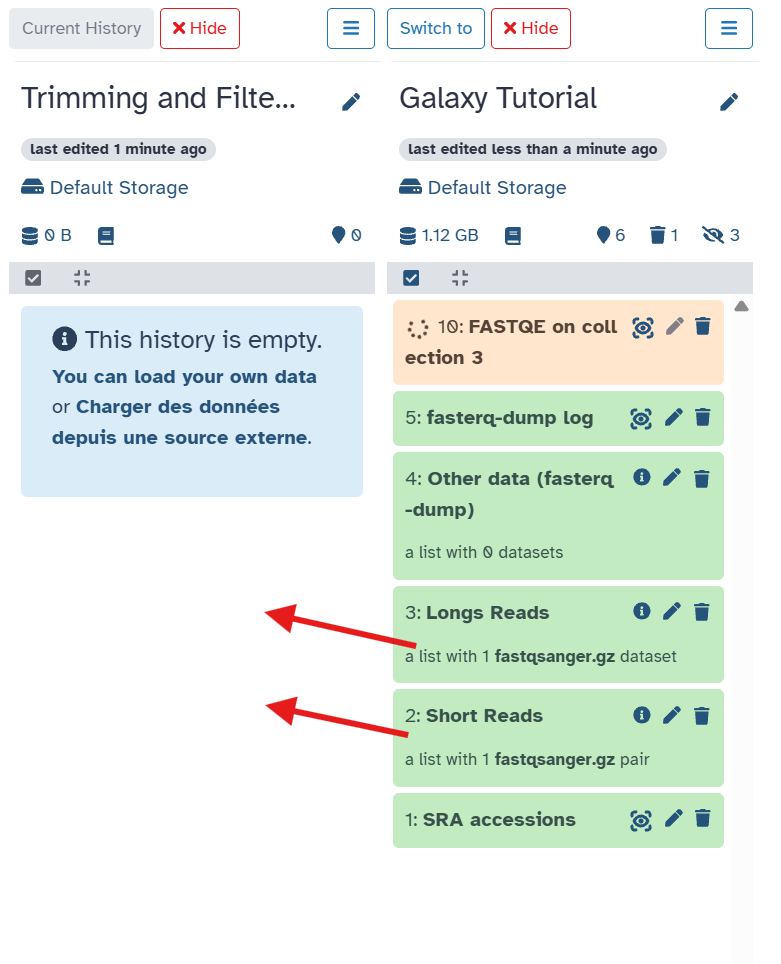
history_multiview_tutorial.png Return to the main Galaxy window
This is not the only way to view your histories in Galaxy:
- You can also click on Datasets, click on the needed file, and click Copy to current history
Conclusion
Well done! You have completed the short introduction to Galaxy:
- Named a history
- Downloaded the short and long reads of our sample from the SRA
- Used a tool
- Viewed results
- Copied datasets to a new history